3.2.2 File

Upon opening the software, the "File Operations" function bar will automatically pop up on the left side. If the model is operated following the progressive workflow from "File Operations" to "Slice", the software enters the workflow processing mode. Different from One-Click, the workflow processing mode opens up more function choices and parameter setting windows, allowing users to manually complete data pre-processing according to their data file processing needs, which offers a higher degree of operational freedom.
File Operations mainly includes four sub-functions: "New Project", "Open Project", "Import Model", and "Save Project":
- New Project: Clicking this button will open a new software interface. If pre-processing operations are required for multiple different applications, you can also choose the "New Platform" operation and configure different printing parameters .
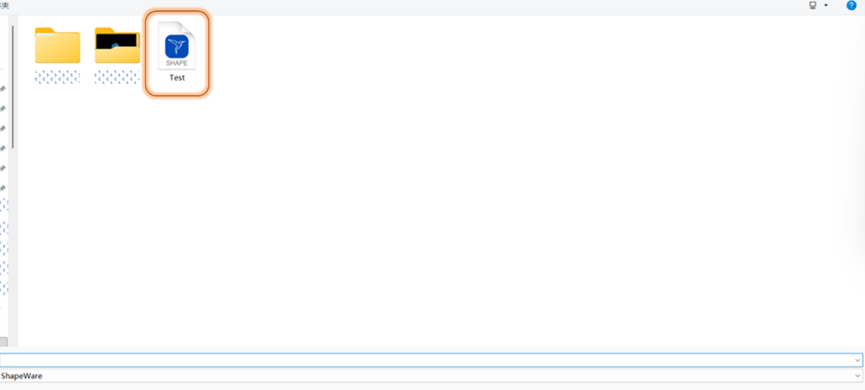
- Open Project: Clicking this button will bring up the "Open Project" pop-up window, allowing users to open .shape format files previously saved by ShapeWare 2.0.
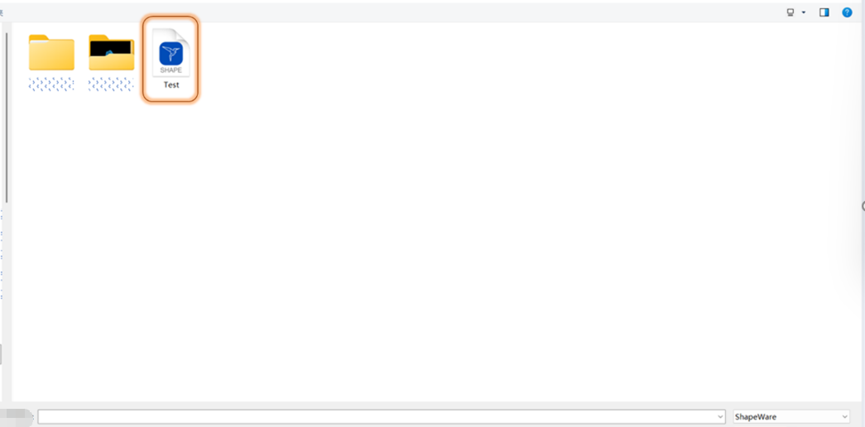
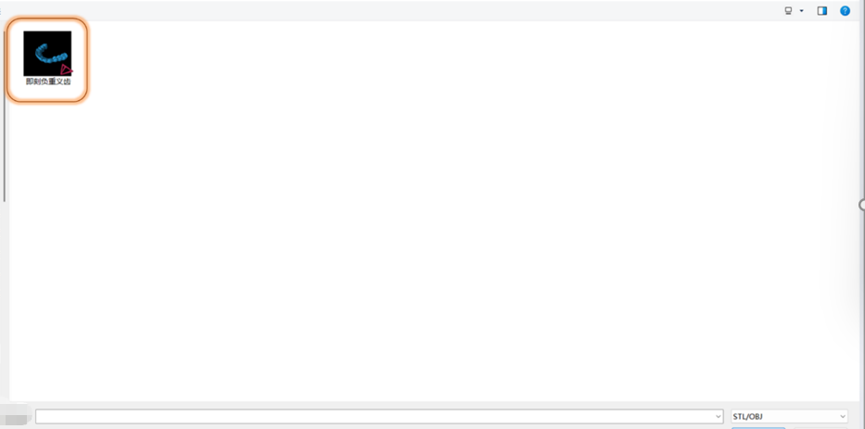
- Import: Clicking this button will bring up the "Select Model" pop-up window, allowing users to import data files in .stl and .obj formats.
- Save Project: Clicking this button will bring up the "Save Project" pop-up window, allowing users to pack and save all platforms, data, scripts, and parameters from the current software operation into a .shape file.